

Business owners are asking: How to protect my small business from hackers?

Small businesses are prime targets for cyberattacks, with 43% of all attacks aimed at them annually. The consequences are severe: 60% of small businesses shut down within six months of a major attack, and the average cost of a breach ranges from $120,000 to $200,000. Hackers exploit weak defenses, such as poor password practices, lack of multi-factor authentication (MFA), and outdated security tools.
Here’s how to protect your business:
- Strengthen Passwords: Use long, unique passphrases (12–16+ characters) and a password manager to securely store and generate passwords.
- Enable MFA: Add an extra layer of security to critical accounts like email, financial tools, and cloud storage.
- Invest in Antivirus and EDR: Protect devices with real-time threat detection and endpoint security tools.
- Train Employees: Teach staff to recognize phishing attempts and run regular simulated phishing tests.
- Automate Backups: Follow the 3-2-1 rule (3 copies, 2 storage types, 1 off-site) and test recovery plans regularly.
Hackers often target small businesses because they lack basic protections. By implementing these steps, you can significantly reduce your risk and safeguard your business from potential cyber threats.
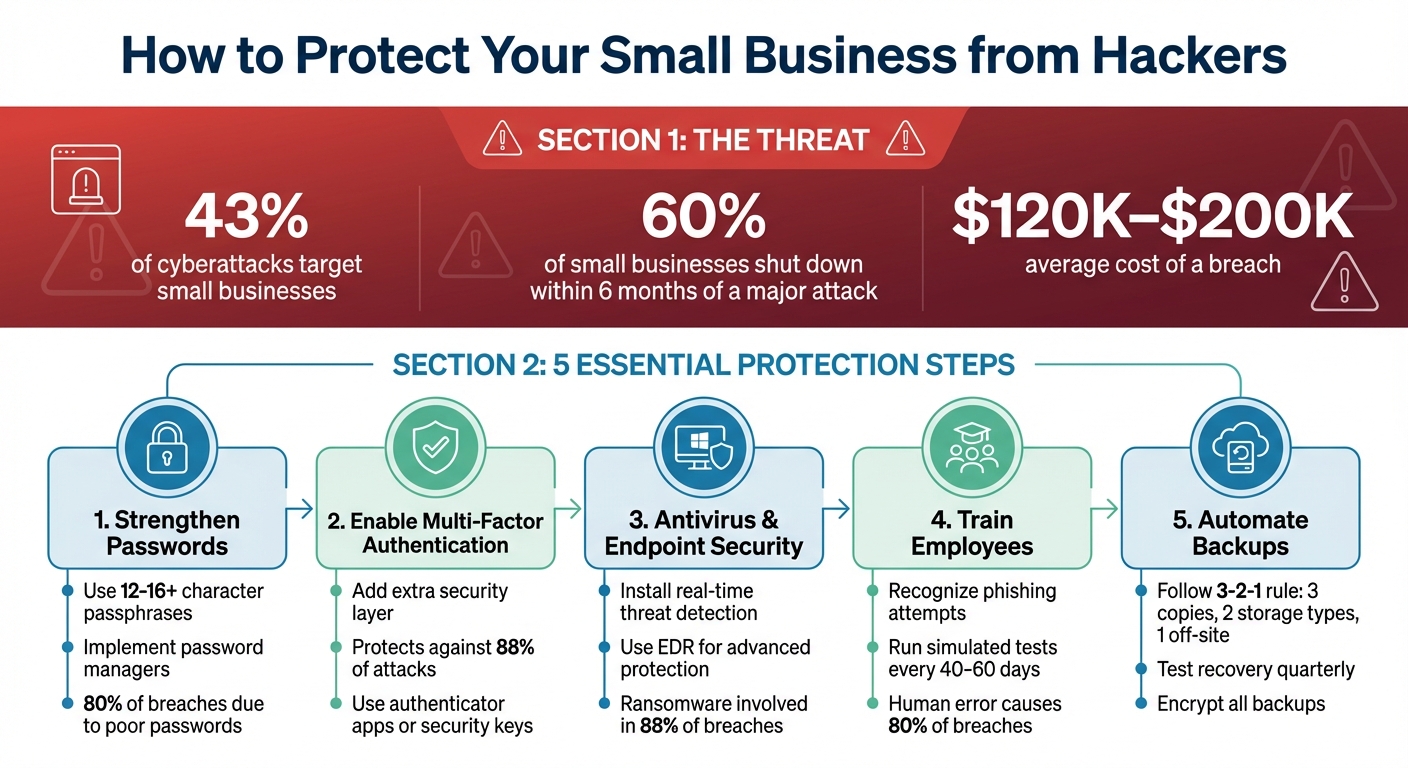
Small Business Cybersecurity Statistics and Protection Steps
Cybersecurity: 5 Must-Know Tips for Small Businesses
sbb-itb-b3a7196
1. Strengthen Password Security
Weak passwords are like an open invitation for hackers. Did you know that 80% of hacking-related breaches happen due to poor password practices? That’s a staggering number. Even more concerning, 35% of people still use personal details – like pet names or family members – in their passwords. Younger generations are especially at risk, with 52% of Gen Z and 45% of Millennials admitting to this habit. And it doesn’t take long for attackers to exploit this – weak passwords can be cracked in just 3 hours.
The issue escalates when passwords are reused. A study found that 94% of passwords were reused or duplicated across accounts, and 44% of employees admitted to using the same passwords for both work and personal accounts. This creates a chain reaction: one breach can expose everything. For example, in 2024, Roku reported that 591,000 customer accounts were compromised through credential stuffing, where attackers used leaked username-password pairs from other breaches. A more severe case was the Colonial Pipeline attack in 2021, which started with a single reused password on an outdated VPN account. The result? Gas shortages and a $4.4 million ransom payout.
Here’s how to improve password security in your business.
1.1 Create Strong Passwords
The first step is creating passwords that are harder to crack. Modern advice focuses on length over unnecessary complexity. Instead of short passwords packed with random symbols, use passphrases made up of 4–7 unrelated words. For instance, "HorsePurpleHatRunBayLifting" is far stronger and easier to remember than "T!gEr#4%". Aim for passwords that are at least 12–14 characters long, though 16+ characters is ideal for maximum protection.
"Using an easy-to-guess password is like locking the door but leaving the key in the lock." – CISA
Another option is the "first letter" method. Take the first letter of each word in a memorable sentence and mix in symbols. For example, "We got married and moved into our first house" becomes "WgmamIofh" with added characters. Whichever method you choose, always update default usernames and passwords on new devices immediately.
1.2 Use Password Managers
Password managers simplify security by generating and securely storing unique passwords for every account. These tools use zero-knowledge architecture, meaning even the service provider can’t access your passwords. For businesses, they offer advanced features like admin controls, role-based permissions, and audit logs to track access.
They also help combat phishing. Browser extensions verify website URLs before autofilling credentials, ensuring passwords aren’t entered into fake sites like g00gle.com instead of google.com. Plus, if an employee leaves, you can revoke their access to all shared credentials instantly.
"Password management is critical for security. Employees were using duplicates and protected Word files containing passwords before moving to 1Password. If we provide this solution, there are no excuses." – Diego de Haller, Cybersecurity Lead, Frontiers
Affordable options include Bitwarden Teams at $4 per user/month, Keeper Business Starter at $2 per user/month (minimum 5 users), and 1Password Business at $7.99 per user/month. Once you’ve set up a password manager, eliminate old methods like spreadsheets, shared Google Docs, or sticky notes.
1.3 Update Passwords Regularly
Regular updates are crucial to ensure that stolen credentials from past breaches can’t be used. While traditional policies recommend changing passwords every quarter, modern guidelines from NIST suggest focusing on updates when there’s a suspected breach or when an employee leaves.
"The primary purpose of establishing a password expiration period is to ensure that hackers cannot determine if the passwords obtained from an old data breach are still valid." – Tabby McFarland, Staff Writer, Small Business Trends
Implement a 90-day rotation policy for most accounts, and use alerts from your password manager to flag passwords found in known breaches. Consider updating your master password annually and always pair password updates with Multi-Factor Authentication (MFA). This way, even if a password is compromised, your accounts remain secure.
2. Enable Multi-Factor Authentication (MFA)
Even the best password can fall into the wrong hands. Multi-Factor Authentication (MFA) adds an extra layer of protection, ensuring accounts remain secure even if passwords are stolen. Given that stolen credentials account for roughly 88% of basic web application attacks, this additional security measure is critical. In 2024 alone, Americans reported over $16 billion in cybercrime losses – a sharp 33% rise from the prior year. MFA stands out as one of the most effective ways to counter these threats.
2.1 What is MFA and Why It Matters
MFA works by requiring users to confirm their identity through two or more distinct factors: something you know (like a password or PIN), something you have (like a smartphone or security key), or something you are (like a fingerprint). This means that even if someone gets hold of your password, they can’t access your account without the additional verification factor.
The stats tell the story. Nearly 43% of cyberattacks target small businesses, often because they lack basic safeguards like MFA. Worryingly, while 77% of small businesses acknowledge the risk of a security breach, 20% still operate without a security strategy. As the Cybersecurity and Infrastructure Security Agency (CISA) puts it:
"Any form of MFA is better than no MFA."
Even basic MFA can make a big difference.
However, not all MFA methods are equally secure. Here’s a quick breakdown:
| MFA Method | Security Level | Vulnerabilities |
|---|---|---|
| Security Key (FIDO2) | Highest | Physical loss of the key |
| Authenticator App | High | Susceptible to advanced phishing without number matching |
| Biometrics | Medium-High | Hard to replicate but best used as a secondary factor |
| SMS/Email Codes | Lowest | Prone to SIM-swapping, interception, and phishing |
Security keys are the most reliable option because they resist phishing attempts. Authenticator apps like Google Authenticator or Microsoft Authenticator are free and offer strong protection. On the other hand, SMS codes, while the weakest option, still provide better security than not using MFA at all. It’s worth noting that SIM-swapping attacks rose by 38% in the first quarter of 2025.
Real-world examples drive home the importance of MFA. In 2022, Uber suffered a breach when a hacker exploited MFA fatigue, bombarding an employee with push notifications until one was mistakenly approved, causing $3 million in damages. Similarly, in April 2024, attackers exposed data from 165 Snowflake customers by exploiting stolen credentials on accounts without MFA enabled.
The takeaway? MFA is essential to protect your business systems.
2.2 Set Up MFA for Key Applications
Start by identifying the accounts that would cause the most damage if compromised. These typically include:
- Email Platforms: Google Workspace, Microsoft 365
- Cloud Storage: Dropbox, OneDrive, Google Drive
- Financial Tools: QuickBooks Online, Stripe, banking portals
- Customer Data: Salesforce, HubSpot, CRM databases
- Remote Access: VPNs, Remote Desktop protocols
Once you’ve pinpointed these critical accounts, enable MFA. Here’s how to set it up on some common platforms:
- Google Workspace: Go to Admin > Security > 2-Step Verification and enable it for all users.
- Microsoft 365: Use the Entra admin center to activate security defaults, enforcing MFA via the Microsoft Authenticator app.
- QuickBooks Online: Access the "Sign in & security" section of your Intuit account to enable MFA.
Always choose the most secure MFA option available. Security keys are the gold standard, followed by authenticator apps with number matching, standard authenticator apps, and finally SMS or email codes. Free tools like Google Authenticator and Microsoft Authenticator are excellent choices for small businesses. For advanced features like cloud backups or device syncing, paid options like Duo Security or Okta offer affordable plans for small teams.
Make MFA a non-negotiable requirement for all employees, especially those with administrative access or remote logins. To ensure smooth adoption, explain why it’s being implemented and provide clear instructions. Train employees to spot phishing attempts and warn them about MFA fatigue attacks, where hackers flood users with push notifications in hopes of accidental approval.
Finally, prepare for emergencies. Generate backup codes and store them securely offline. Register secondary recovery devices to avoid being locked out if a phone is lost or stolen. Combined with strong password practices, MFA significantly boosts your business’s security.
3. Protect Business Devices with Antivirus and Endpoint Security
Strong passwords and multi-factor authentication (MFA) are essential, but they only secure accounts. Every device connected to your network is still a potential entry point for hackers. Alarmingly, small businesses are nearly four times more likely to be targeted than large enterprises, with 2,842 confirmed data breaches compared to just 751 for larger companies.
Traditional antivirus software works by scanning for known threats. However, today’s cybercriminals often use AI-generated malware or zero-day exploits that can slip past these defenses. This is where Endpoint Detection and Response (EDR) comes into play. EDR doesn’t just look for known threats; it uses behavioral analysis and machine learning to identify suspicious activity, such as a word processor suddenly attempting to encrypt files – a common sign of ransomware. When a threat is detected, EDR can isolate the infected device, stop malicious processes, and prevent the attack from spreading across your network.
The stakes are high: ransomware was involved in 88% of breaches in 2025, and 32% of small businesses report they would have to shut down if they lost just $10,000. Lizzie Danielson, a security expert at Huntress, draws a vivid comparison:
"EDR is the cybersecurity equivalent of upgrading from a deadbolt to a smart home surveillance system."
To keep your business safe, combine antivirus, EDR, and firewalls into a layered defense. Start by creating a complete inventory of all devices, including employee-owned laptops and phones, to ensure no device is overlooked. Choose security software that matches your business size and budget, focusing on tools that offer real-time protection, automatic updates, and centralized management. This way, you can monitor all devices from a single dashboard.
3.1 Choose the Right Antivirus Software
Antivirus software should do more than just scan for viruses – it needs to protect your business continuously. Look for solutions with real-time protection that monitor your systems in the background, stopping threats before they cause damage. Modern antivirus tools often include behavior-based detection, powered by AI, to catch unusual activity that traditional scanners might miss. For example, if a file suddenly starts encrypting documents or a program tries to make unexpected network connections, behavior-based tools can flag it immediately.
Key features to prioritize include phishing defense, cloud backups for data recovery, and automated patch management to fix vulnerabilities. It’s also crucial to select software with low system impact, so it doesn’t slow down your devices, and scalability, so it can grow as your business does.
Here’s a quick comparison of popular antivirus options for small businesses:
| Provider | Best For | Key Features | Max Devices | Pricing |
|---|---|---|---|---|
| Norton Small Business | Small teams (up to 10 staff) | Real-time protection, VPN, Password Manager | 20 | ~$149.99/year |
| Bitdefender GravityZone | Medium-to-large businesses | Endpoint security, risk management, sandboxing | 100 | Varies; 30-day trial |
| Surfshark Antivirus | Very small businesses | Affordable, bundled with VPN, easy setup | 5 | $2.69–$17.95/month |
| Avast Antivirus | Enterprises | Ransomware protection, patch management | 999 | 30-day trial available |
For example, Norton Small Business is highly rated for its real-time protection and bundled features, while Surfshark stands out for its affordability and VPN integration, though it may not scale well for larger teams. Be sure to set your antivirus software to update automatically – patches often fix vulnerabilities that hackers exploit. For extra security, use a dedicated computer for payment processing and avoid using it for casual web browsing.
3.2 Enable Endpoint Detection and Response (EDR)
Antivirus software is great for handling common threats, but EDR takes it a step further by spotting more advanced and stealthy attacks. Think of EDR as a "digital flight recorder" for your network. It logs detailed data, such as process executions, network connections, and registry changes. This helps you investigate the root cause of an attack if one occurs. More importantly, EDR uses behavioral analytics to catch threats that traditional antivirus might miss, such as fileless malware that doesn’t leave a traditional file trail.
Businesses using AI and automation in their security response have significantly reduced the time it takes to address breaches – by 80 days on average – and saved around $1.9 million in costs. By 2026, many cyber insurance providers will require documented EDR or Managed Detection and Response (MDR) coverage as a condition for renewing policies. EDR solutions typically cost $5 to $12 per endpoint per month, while MDR services with 24/7 monitoring range from $8 to $15 per endpoint per month. Budget-friendly options like ThreatDown or CrowdStrike Falcon Go start at $5 to $9 per endpoint per month.
When implementing EDR, start in monitoring mode to fine-tune its policies and minimize false positives before enabling active blocking. Focus on protecting critical endpoints first, such as servers and devices used by administrators or finance teams. Enable host isolation so the EDR system can quarantine compromised devices during high-risk events, preventing ransomware from spreading. As Nandor Katai from Valydex puts it:
"Endpoint protection performs best as an operating system, not a single tool purchase."
To strengthen your defenses further, follow the 3-2-1 backup rule: keep three copies of your data on two different types of storage, with one copy stored offsite or in the cloud. Test your backups quarterly to ensure they work when needed. Additionally, remove local administrator privileges from user devices to prevent unauthorized software installations and limit the damage malware can cause. By layering these strategies, you create a comprehensive defense that makes it much harder for hackers to succeed.
4. Train Employees on Cybersecurity Best Practices
While strong passwords and antivirus software are essential, your team’s awareness is the ultimate safeguard against cyber threats. Human error accounts for more than 80% of data breaches, making employees a prime target for cyberattacks. Phishing, for instance, has become more sophisticated, with AI-generated messages achieving success rates of 30–44%, compared to 19–28% for human-written emails. Attackers also use tactics like smishing (phishing via text), vishing (voice phishing), and even deepfake videos to impersonate executives. Phishing alone was responsible for 41% of initial access incidents and led to 193,407 FBI complaints in 2024. As the Cybersecurity and Infrastructure Security Agency (CISA) states:
"Cybersecurity is about culture as much as it is about technology."
The good news? Regular training can dramatically reduce phishing risks. Studies show that training can lower phishing susceptibility from over 30% to just 5% in a year, preventing 95% of successful phishing attacks. Considering that training costs about $30–$50 per employee annually – far less than the $4.45 million average cost of a data breach – investing in employee education is a smart move. Organizations that pair training with simulated phishing tests have seen vulnerability rates drop from 32.4% to 5.4% in just 12 months.
4.1 Recognize Phishing Scams
Start by teaching employees how to spot phishing attempts. Highlight common tactics, such as the use of urgent language like "Your account will be suspended!" or "Immediate action required", designed to provoke quick, unthinking responses. Show them how to verify email authenticity by checking domains – e.g., emails claiming to be from Chase Bank should come from @chase.com, not a suspicious variation like @chasebank.com. Encourage employees to hover over links to check where they actually lead.
Introduce a "Verify via Call" rule: if an email requests sensitive information, wire transfers, or password resets, employees should call the sender using a known phone number rather than one provided in the email. Make reporting suspicious emails easy by implementing a one-click reporting process, allowing staff to quickly forward potential threats to IT or a Security Program Manager. A simple, non-punitive reporting system encourages employees to flag concerns without fear of blame.
Expand training to cover more than just email-based phishing. Include smishing, vishing, and social engineering tactics. Use examples tailored to your industry, such as fake invoices for retail businesses or HIPAA-related scams for healthcare organizations.
4.2 Conduct Regular Security Training
Cyber threats evolve constantly, so cybersecurity training shouldn’t be a one-and-done event. Regular sessions – whether quarterly deep dives or brief monthly updates – reinforce critical security principles and introduce new threat types. Use diverse formats like videos, interactive modules, handouts, or tabletop exercises to keep employees engaged.
You don’t need to reinvent the wheel. Free resources from CISA, the FTC, and the SBA can help build your training program. Tailor content to specific roles – finance teams may need extra guidance on wire fraud, while customer service teams focus on spotting social engineering over the phone. Appoint a Security Program Manager (not necessarily an IT expert) to monitor emerging threats and share updates, ensuring your training stays relevant.
Leadership involvement is key. When a CEO announces and participates in security initiatives, it shows that cybersecurity is a company-wide priority. Follow up training with quizzes or unannounced phishing simulations to test understanding and identify areas needing more attention. Impressively, 94% of individuals report changing their online behavior after attending cybersecurity training.
4.3 Run Simulated Phishing Tests
Simulated phishing tests are like pop quizzes, helping employees apply their training in realistic scenarios. Conduct these tests every 40–60 days to keep cybersecurity top-of-mind without overwhelming your team. Use scenarios relevant to your industry, such as fake invoices, HR updates, or executive impersonation emails.
Before starting, coordinate with IT to whitelist simulation domains so they don’t get blocked by spam filters. Begin with a baseline test to measure your organization’s initial vulnerability. If an employee clicks a phishing link, provide immediate feedback, pointing out the red flags they missed. This turns mistakes into learning opportunities.
As Gloria Bakerian, a cybersecurity expert at Professional Computer Concepts, explains:
"The human element is the weakest link in security, but with effective phishing security awareness training, employees can become the strongest defense against phishing and social engineering attacks."
Focus on increasing the rate of reported suspicious emails rather than just reducing click rates. Implement a one-click "Phish Alert Button" to make reporting simple and routine. To encourage participation, gamify the process with leaderboards, badges, or small rewards like gift cards for employees who consistently report potential threats. In the 2022 Gone Phishing Tournament, about 1 in 10 users clicked on simulated phishing links, underscoring the ongoing need for training and vigilance.
Consistent training and phishing simulations are essential parts of a well-rounded cybersecurity strategy.
5. Back Up Business Data and Test Recovery Plans
While earlier sections discussed ways to prevent security breaches, having a reliable backup system is your ultimate safety net. If hackers manage to penetrate your defenses, backups can mean the difference between recovery and disaster. Consider this: 93% of businesses that experience extended data loss (more than 10 days) end up filing for bankruptcy within a year. Ransomware is a major culprit in many of these cases. The Cybersecurity and Infrastructure Security Agency (CISA) emphasizes this point:
"Backups are your best hope of recovery from a ransomware attack."
However, backups are only effective if they are automated, encrypted, and – most importantly – tested. As Passwork puts it:
"Untested backups are just expensive storage."
Here’s how to ensure your backup system is ready when you need it most.
5.1 Automate Data Backups
Relying on manual backups is risky due to human error. Instead, set up an automated system that handles backups without needing constant oversight. Start by identifying what data is critical to your business – customer records, financial files (like QuickBooks or spreadsheets), HR documents, and legal contracts.
Use the 3-2-1 rule for backups: keep three copies of your data on two different types of storage media (e.g., cloud storage and an external hard drive), with one copy stored off-site. This strategy protects against both cyberattacks and physical disasters like fires or floods. Schedule daily backups for essential systems and weekly backups for less critical data.
Automated tools make this process seamless. Cloud backup services run in the background, while Network Attached Storage (NAS) systems can perform backups overnight. Acrisure Cyber Services highlights the ideal setup:
"The ideal setup is fully automated, encrypted, and monitored."
Enable alerts to notify you of any issues, such as failed backups or low storage space. Set retention policies to keep multiple versions of files for at least 30 to 90 days – this is crucial for recovering from ransomware that could remain dormant before activating. Consider using immutable backups, which cannot be altered or deleted for a set period, to further secure your data.
| Backup Method | Pros | Cons |
|---|---|---|
| Cloud Backup | Automatic, off-site, accessible anywhere | Requires internet; large restores may be slow |
| External Hard Drive | Inexpensive, fast local restoration | Manual effort; vulnerable to theft/fire if on-site |
| NAS (Network Storage) | Centralized, fast, high capacity | Higher upfront cost; requires technical setup |
5.2 Encrypt Backups for Added Security
Encryption is essential to protect your backups from unauthorized access. Even if someone steals your external hard drive or breaches your cloud account, encryption ensures they can’t access the data without the decryption key. This is especially important for sensitive information like customer payment details, health records, or Social Security numbers, which are subject to regulations like HIPAA, GDPR, or PCI-DSS.
Encrypt your data both in transit (while being transferred to the cloud) and at rest (while stored on a server or disk). Use robust encryption standards like AES-256, which is virtually impossible to crack. Most cloud backup services offer end-to-end encryption, but always confirm this before committing to a provider. For physical backups, enable full-disk encryption with tools like BitLocker (Windows) or FileVault (Mac).
If you rotate physical backup drives to off-site locations, such as a bank vault or home safe, ensure those drives are encrypted. A stolen, unencrypted backup is a goldmine for hackers. The Federal Trade Commission (FTC) underscores this:
"Encryption protects information sent over your network so it can’t be read by outsiders."
Pair encryption with versioning capabilities to restore clean copies of your files in case of an attack. Once your backups are automated and encrypted, the next step is to test their reliability.
5.3 Test Recovery Procedures
A startling 75% of small and medium businesses say they couldn’t continue operating after a successful ransomware attack. Yet, many businesses don’t test their backups until it’s too late. Regular testing ensures that your backups are intact, accessible, and functional when you need them.
Start by defining two key metrics: your Recovery Time Objective (RTO) – how quickly you need to restore operations – and your Recovery Point Objective (RPO) – how much data loss you can tolerate (e.g., 24 hours of work). These metrics will guide your backup schedule and testing frequency. For critical systems like payment processing or customer databases, test recovery every three months (quarterly). For other systems, annual tests may suffice.
When testing, don’t just verify that files exist – perform full restorations. Delete a random file and attempt to restore it to confirm the system works. Always scan restored data for malware or corruption before reconnecting it to your network to avoid reinfection. Prioritize restoring critical systems first to maintain business continuity.
Document your backup and recovery procedures and store this information securely offline. Roughly 65% of ransomware attacks target backups, either encrypting or deleting them. Testing ensures your strategy can withstand even sophisticated attacks.
Lastly, keep 20–30% of your backup storage free to handle unexpected growth. Backups often fail simply because the storage is full. Automated testing tools can also check backup integrity without manual effort, giving you confidence that your safety net is ready when disaster strikes.
Conclusion
Protecting your business doesn’t mean investing in every security tool out there – it’s about consistently applying a few fundamental controls. Focus on what makes the biggest difference: enable multi-factor authentication (MFA) on critical accounts, automate updates to patch vulnerabilities, and follow the 3-2-1 backup rule to ensure you can recover from ransomware attacks. These three steps alone address the most common threats small businesses face today.
Cybersecurity isn’t just about technology; it’s about creating a mindset. As CISA puts it:
"Cybersecurity is about culture as much as it is about technology… Culture cannot be delegated."
Your employees are your first line of defense. Train them regularly to spot phishing attempts, run simulated phishing attacks to test their readiness, and weave security into everyday operations.
The stakes are high: 60% of small businesses that experience a major cyberattack shut down within six months. A single mistake can have devastating consequences, as shown earlier. Don’t let your business become another cautionary tale.
Start today: turn on MFA for key accounts, automate your backups and test restoring one, and schedule a phishing simulation before the end of the quarter. Cybersecurity isn’t about being perfect – it’s about taking action and improving step by step. Take that first step now, and make security a part of your company’s DNA.
FAQs
What are the first 3 cybersecurity steps I should take this week?
Start strengthening your cybersecurity this week with these three simple steps:
- Turn on Multi-Factor Authentication (MFA) for key accounts like email and banking. It adds an extra layer of security beyond just a password.
- Keep all software updated and patched. Updates often fix weaknesses that hackers could use to break in.
- Educate your team about phishing scams and safe online habits. Awareness is your first line of defense against cyber threats.
Taking these actions can go a long way in reducing the cyber risks your business faces.
Which MFA method is best for a small business?
For small businesses, the ideal multi-factor authentication (MFA) setup blends time-based one-time passwords (TOTP) from authenticator apps, biometric verification, or a physical security token.
Authenticator apps like Google Authenticator or Authy are both cost-effective and secure, making them a popular choice. Biometric verification adds an extra layer of convenience by using fingerprints or facial recognition. Meanwhile, physical security tokens, such as YubiKey, provide strong protection against phishing attacks.
This combination ensures your business stays secure – even if passwords are compromised.
How often should I test my backups to ensure recovery?
Cybersecurity professionals advise testing your backups at least once a year to ensure you can recover data properly when needed. If your business deals with data that changes frequently or operates under strict regulations, it’s wise to test more often – quarterly or even monthly. This helps catch potential issues early and keeps your recovery process reliable.
Related Blog Posts
