

How Colors Impact Lead Magnet Performance
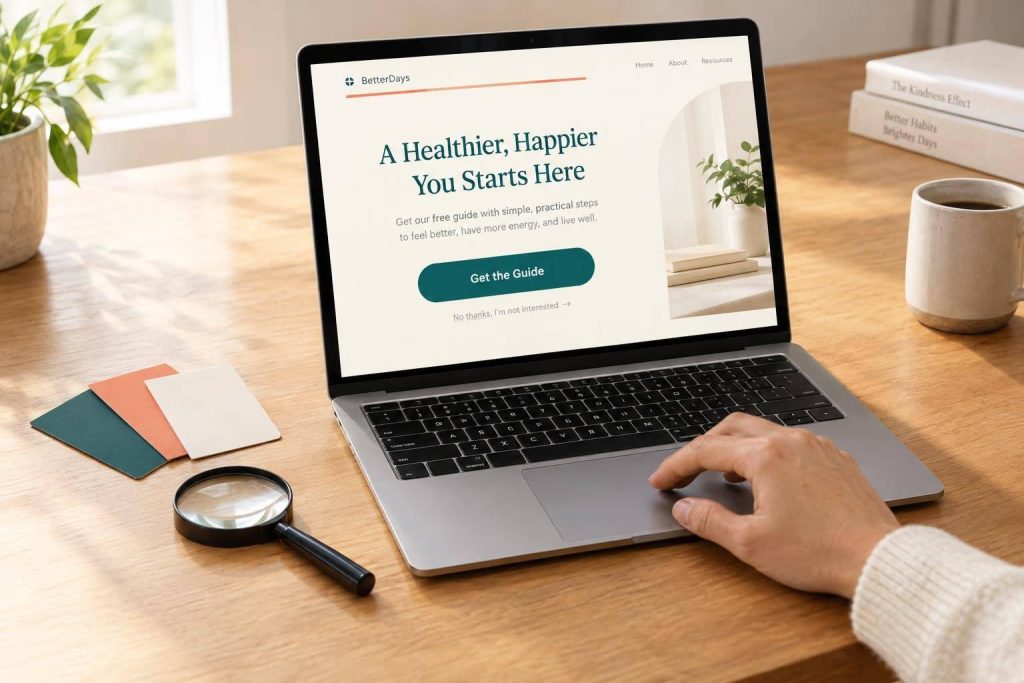
I start with contrast, not a “best” button color. Use a CTA that stands out, keep text contrast at 4.5:1 or higher for regular text, and test one color change against completed signups – not just clicks.
Here’s the approach I use:
- Give colors clear roles: Keep brand colors consistent across interactive lead magnets, signup page, and follow-up.
- Make information readable: Pair color with labels, borders, or patterns, and check mobile and print layouts.
- Measure results: Track form starts, completions, and purchases while keeping copy and layout unchanged.
- Save what works: Record tested, accessible styles for future use.
Color helps people see what to do. <u>It doesn’t replace an offer they want.</u>
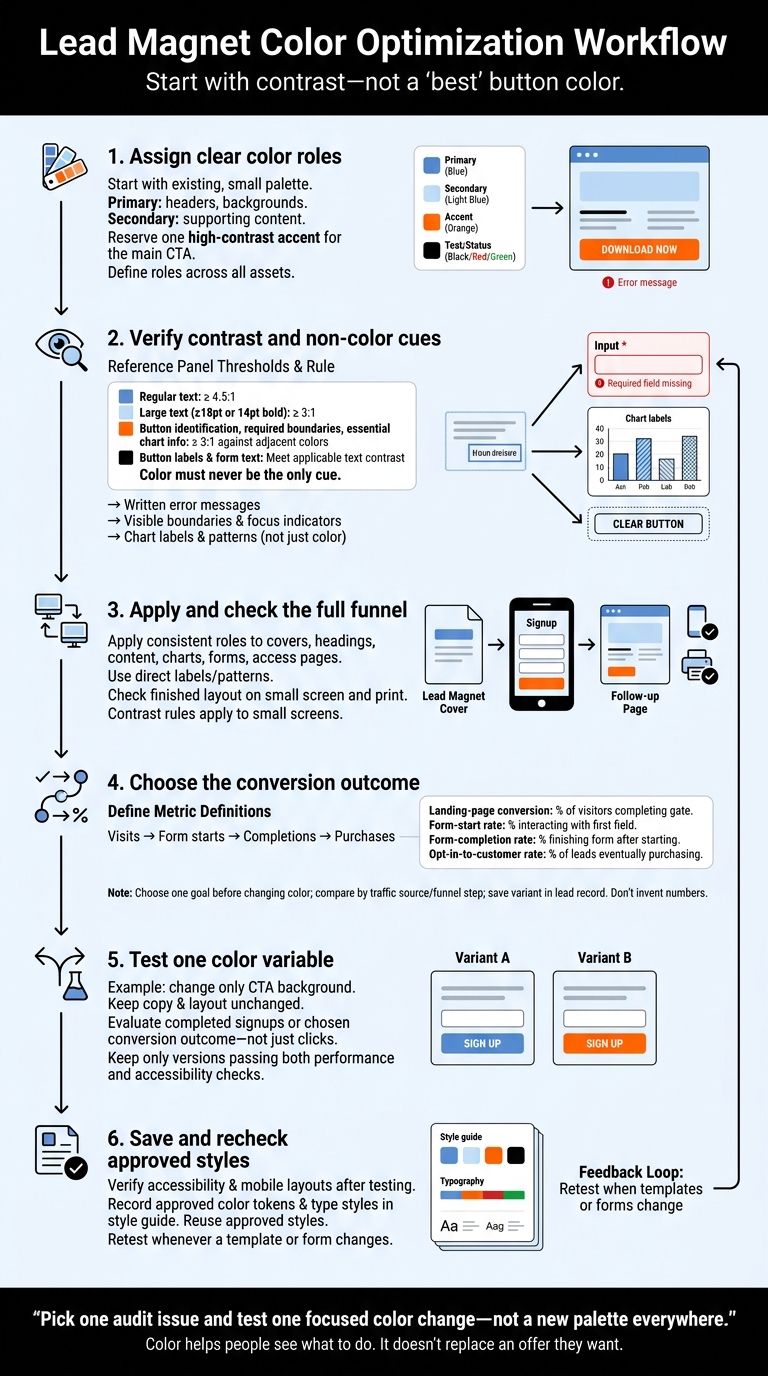
Lead Magnet Color Optimization Workflow
Choose Colors for Your Brand and Offer
Match Colors to Your Audience and Purpose
Start with your brand’s existing palette. Choose colors that fit your audience and support your lead magnet offer. The goal is to make the offer easy to scan, not just match your branding. No single hue guarantees more conversions. Use color to reinforce your message and guide readers toward the action you want them to take.
Keep the palette small so the CTA remains the visual focus.
Assign Color Roles and Usage Rules
Give each color a clear job. Use primary brand colors for headers, backgrounds, and other core elements. Use secondary colors for supporting content, and reserve one high-contrast accent for the main CTA. Define background, text, and status colors so your team can apply them consistently. This is especially helpful when you create a checklist lead magnet or other interactive assets.
Document these roles in one place. Keep the CTA accent for the main action rather than using it on decorative elements that could compete for attention.
Use the same color roles throughout the lead magnet funnel so readers can spot the action faster. Leave enough white space to help the content and CTA stand out. This structure also makes future readability checks and tests easier.
sbb-itb-b3a7196
Use Color to Make Content Easy to Read
Check Contrast and Add Non-Color Cues
After assigning color roles, test them in the actual layout. Check contrast against each element’s background, including tinted panels. WCAG AA requires at least 4.5:1 for regular text and 3:1 for large text – at least 18 points, or 14 points bold. Test the final font size and weight, not just the palette.
Apply these minimum checks to every element readers need to scan quickly.
| Element | Applicable contrast requirement | Cue beyond color |
|---|---|---|
| Body copy | 4.5:1 against its background | Clear typography and enough white space |
| Headings | 3:1 for large text; otherwise 4.5:1 | Consistent typography to show hierarchy |
| Buttons | 3:1 for interface components | Clear borders or shadows and readable labels |
| Form fields | Boundaries and state indicators need 3:1; text follows text rules | Visible borders, focus indicators, and written error messages |
| Charts | Essential graphical information needs 3:1 against adjacent colors | Direct labels, patterns, or textures for clarity |
| Callout boxes | 3:1 for borders/backgrounds needed to convey information | Selective tinting with readable text |
Color must never be the only cue that helps readers recognize important information.
Apply Color to Covers, Content, and Charts
Once the palette passes contrast checks, use it throughout the lead magnet. Keep covers, headings, and body text readable with high contrast and simple backgrounds. Use heading colors consistently, and save tinted callouts for information that needs extra attention. Check callout text against the tint – not the surrounding page.
Readable typography and an uncluttered layout make scanning easier. Give chart series direct labels or patterns so readers can tell them apart without relying on color. In checklists and worksheets, pair each checkbox with a written task. Separate groups with headings or clear boundaries.
Test the finished content on a small screen and in print. The same contrast rules apply on small screens.
Keep Forms and Gated Pages Consistent
Carry these visual rules through the path to conversion. Keep button labels readable, input boundaries visible, and keyboard focus easy to find. Pair validation colors with written error messages or labeled icons rather than relying on red or green alone. Use the same contrast, labels, and focus states on signup and access pages.
How to pick the right colors for your website or app | UI/UX design tips
Measure and Test Color Changes
Once your palette passes readability checks, test whether the new colors lead to more signups and purchases.
Choose Metrics for Each Color Change
Choose the conversion outcome before changing a color. Track visits, form starts, completions, and purchases – not just clicks. Link these metrics to the lead magnet’s cover, gate, form, and follow-up, then compare results by traffic source and funnel step.
Give each color change one measurable goal so you know what the test needs to show.
| Metric | Definition | Related design element | Hypothesis | Main interpretation factors |
|---|---|---|---|---|
| Landing-page conversion | % of visitors who complete the gate | CTA button color | Better contrast may make the button easier to see and increase conversions | Traffic source quality, offer relevance |
| Form-start rate | % of visitors who interact with the first form field | Form background/border | Easier-to-spot fields may encourage visitors to start | Device type, form placement |
| Form-completion rate | % of users who finish the form after starting | Input field focus colors | Clearer active states may reduce friction | Number of fields, keyboard accessibility |
| Opt-in-to-customer rate | % of leads who eventually make a purchase | Brand color consistency | Consistent branding may build trust | Nurture sequence quality, product price point |
Save the test variant in each lead record so you can link later purchases to the right color version. Use email opens and clicks to help assess whether the change improves readability or just draws more clicks.
Run Controlled Color Tests
Change one color variable at a time, such as the CTA background. Keep the copy and layout the same so you can isolate the color’s effect. Measure your chosen conversion outcome, and keep only versions that pass both performance and accessibility checks.
Verify Accessibility and Save Approved Styles
After testing, use a checklist to confirm that brand colors meet accessibility standards and CTAs retain high contrast. Check mobile layouts, then save approved color tokens and type styles in your style guide. Retest the palette whenever a template or form changes.
Conclusion: Put Your Color Plan into Practice
After testing and accessibility checks, put your color rules to work on one existing, live lead magnet. Audit its text, CTA, and form states. Check text contrast, CTA visibility, and any form states that rely on color alone.
Use your findings to build a color plan. Define text, background, and CTA colors that fit your brand and offer. Add non-color cues so visitors know what to do without having to distinguish between colors. Keep your choices consistent, readable, and testable, with conversions in mind.
Let the plan guide how you apply colors, check accessibility, and run tests. Pick one audit issue and test one focused color change – not a new palette everywhere. If the change performs better, save it in your style guide. Then use those approved colors in future lead magnets.
FAQs
What if my brand colors fail contrast checks?
Poor contrast can make content hard to read and weaken user trust, leading readers to leave. Use the WebAIM Contrast Checker to check color pairings against WCAG AA standards: 4.5:1 for body text and 3:1 for large text or UI elements.
Subpage.co helps you apply accessible, consistent typography and colors across your lead magnets – no technical design expertise needed.
How many signups do I need for a reliable color test?
Run each color variant for at least 2 weeks, and wait until the test records at least 1,000 sessions and 100 conversions (signups).
Change only one variable at a time so you can link the results to that specific design change. Wait until the test reaches a 95% confidence level before naming a winning color variant.
What if a color change increases clicks but lowers signups?
Put signups and revenue ahead of click-through rate. Clicks can help you diagnose performance, but traffic that doesn’t convert may point to a mismatch between your offer and what users expect.
Use A/B testing to test the color change on its own. Track downstream conversions and watch metrics like bounce rate to see whether the change helps users convert or distracts them.
Related Blog Posts
