

7 CRM Integration Challenges and Fixes

Most CRM lead sync problems come from just seven failure points: trigger, field mapping, access, duplicates, API limits, workflow timing, and monitoring. If I fix those seven areas, I usually fix the whole lead flow too.
A slow sync can cost a lead before sales even sees it, especially when moving from interactive lead magnets vs PDF formats to your database. In this piece, I’d focus on the fastest path to a fix:
- Use webhooks instead of polling to cut lead delay
- Match fields and data types so records don’t arrive broken
- Check tokens and user access when syncs fail with no clear warning
- Set dedupe and field ownership rules to stop duplicate or overwritten records
- Watch API limits during launches so traffic spikes don’t block lead flow
- Review workflow order so automations run after the record is ready
- Set alerts and weekly checks so failed syncs don’t pile up
The article’s core message is simple: don’t guess. I’d trace the lead from form submit to CRM record, fix the break, then test the full path again.
Quick Comparison
| Issue | What usually goes wrong | Fix to start with |
|---|---|---|
| Missing or delayed sync | Polling-based trigger or broken connection | Switch to webhooks and test live |
| Field mapping problems | Wrong field name or bad data type match | Audit mapping and standardize inputs |
| Access errors | Expired token or weak user permissions | Reconnect and check admin rights |
| Duplicate or overwritten records | No match check or no field control rule | Match by email and define field ownership |
| API limit failures | Traffic spike during campaigns | Batch requests and retry failed calls |
| Workflow timing conflicts | Automation runs before fields finish syncing | Add delays or field-based conditions |
| No alerts or checks | Failed syncs sit in logs too long | Add alerts and weekly reconciliation |
If I wanted one takeaway from the article, it would be this: fix the root cause, then verify the data flow end to end.
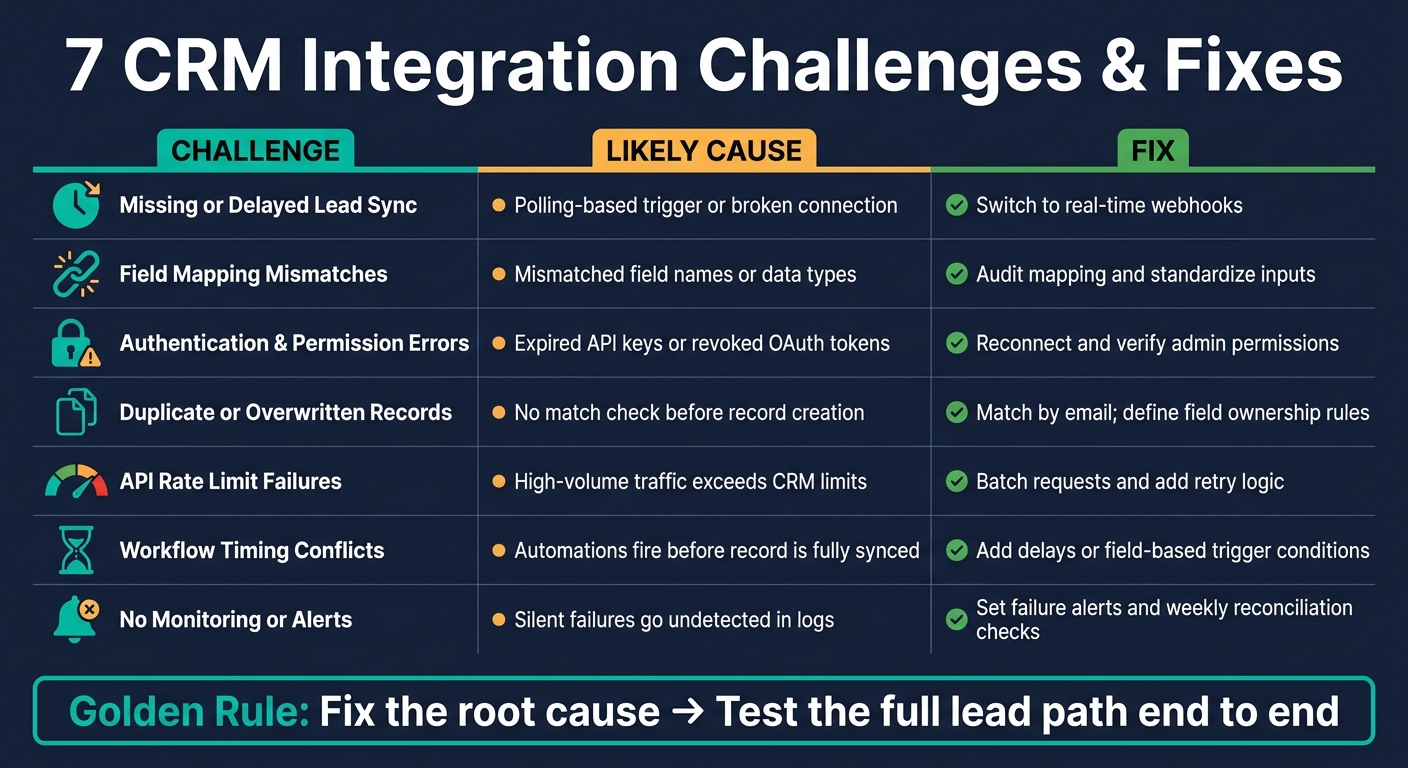
7 CRM Integration Challenges: Symptoms, Causes & Fixes
The 7 CRM integration challenges and fixes
1. Missing or delayed lead sync
Symptom: A lead submits a form, but nothing shows up in the CRM – or it appears 15–30 minutes later.
In most cases, the delay comes from a scheduled poll instead of a real-time trigger.
Fix: A lead should go from form submission to CRM record right away. The simplest way to make that happen is with a webhook. If you collect leads in Subpage.co, send its webhooks straight to your CRM or automation tool.
After you make the change, submit a test lead and watch the CRM. If the record appears within seconds, the trigger is doing its job. If it doesn’t, check the integration logs for errors before you move on.
If the lead shows up but lands in the wrong place, the next thing to check is field mapping.
2. Field mapping mismatches
Symptom: Leads sync, but fields land in the wrong place or required fields stay blank.
This usually happens when form field names and CRM property names don’t match exactly, or when the data types clash. A form can also fail when it sends a value the CRM isn’t set up to accept – for example, free text going into a dropdown or another constrained field.
Fix: Open the field mapping panel in your integration and review each source field, destination property, and data type. Keep form inputs standardized, and use the same field names across every capture point. That helps the data arrive cleanly in the CRM.
Then run a test submission and inspect the raw CRM record. You want to confirm that each field landed where it should.
If the fields look right but nothing syncs, check authentication next.
3. Authentication and permission errors
Symptom: The integration looks connected, but syncs fail quietly or show an authentication error in the logs.
The usual suspects are expired API keys and revoked OAuth tokens.
Fix: Go to your connected apps or API settings and check the status of the token or key the integration uses. If it’s expired or revoked, reauthorize the connection with an account that has the right admin permissions.
4. Duplicate, overwritten, or inconsistent records
Symptom: The same contact appears twice in the CRM, or a field updated manually by a rep gets overwritten on the next sync.
Bad deduping makes records messy and weakens lead history for sales.
Duplicates usually happen when the integration creates a new record without first checking for an existing match. Overwrites happen when the integration updates every field on every sync, with no clear rule about which system controls which field.
Fix: Check for the contact by email before creating a new record. Then decide field ownership up front: the CRM should control fields reps update by hand, while the form integration should control fields collected at submission.
Write that rule down. Otherwise, the next person who touches the setup may flip it by accident.
5. API rate limits and connection failures
Symptom: Syncs work fine during normal traffic but start failing during a campaign launch. The logs show timeout errors or missed records.
High-volume campaigns can hit CRM rate limits, and once that happens, requests may fail.
Fix: Start with the logs. Make sure rate limiting is the actual issue and not something else, like an auth problem or a mapping mistake. If rate limits are the cause, batch updates, spread out heavy imports, and retry failed requests after the limit resets.
If the sync goes through but workflow behavior still looks off, move to timing conflicts.
6. Sync timing and workflow logic conflicts
Symptom: A lead syncs to the CRM but enters the wrong pipeline stage, or an automation runs before the record is fully populated.
This happens when more than one system writes to the same record at almost the same time, or when a CRM workflow triggers before the sync finishes.
Fix: Map the sequence step by step:
- Form submission
- Integration fires
- CRM record gets created
- CRM workflow triggers
Then look for any step that depends on the one before it being complete. Add a short delay before dependent workflows run, or use conditional logic so the workflow triggers only after a required field is populated.
It also helps to review the trigger conditions in your CRM workflows and compare them to the record’s actual state when those workflows fire.
7. No monitoring, alerts, or reconciliation process
Symptom: Everything seems fine until you notice new leads stopped showing up in the CRM. Then you open the logs and find hundreds of failed syncs that no one caught.
At that point, the issue isn’t just the sync. It’s the lack of visibility around it.
Silent failures do the most damage. A token expires, a rate limit hits, and the integration breaks quietly. Without alerts, no one notices until leads are already missing.
Fix: Set up failure alerts and compare weekly form submissions against CRM contacts. Any gap means records were lost.
Use the quick diagnostic table below to match symptoms to fixes faster.
sbb-itb-b3a7196
How Can You Fix Failing HubSpot CRM Integrations? – Sales Pro Blueprint
Quick diagnostic table for faster troubleshooting
Use this table to match each symptom with the most likely cause and fix. Start by checking the connection. Then review field mapping. After that, look at workflow timing.
| Challenge | Likely Cause | Fix |
|---|---|---|
| Missing or delayed lead sync | Broken connection or polling-based sync | Verify the connection, then switch to real-time webhooks |
| Field mapping mismatches | Mismatched fields between content-led lead magnets and the CRM | Standardize fields across every touchpoint and audit each mapped field |
| Authentication and permission errors | Expired API keys or restricted user roles | Reconnect the app and confirm the integration user can write to the CRM |
| Duplicate or inconsistent records | The integration creates a new record without checking for an existing match | Match by email before adding a new contact |
| API rate limit failures | High-volume traffic exceeds CRM request limits | Batch updates and add retry logic for failed requests |
| Workflow logic conflicts | Overlapping automation triggers fire before the CRM record is fully populated | Audit the workflow order and make sure dependent automations run in the right sequence |
| No monitoring or alerts | No alerts or monitoring are in place | Set up failure alerts and weekly pipeline reports |
Use the table to narrow down the issue, then move to the prevention checklist below.
How to prevent repeat integration problems
Once you fix a failure, the next job is making sure it doesn’t show up again. The best way to do that is to use the same launch controls every time.
Most CRM integration failures happen again for a simple reason: teams skip the basics. Field standardization gets missed. Duplicate checks don’t happen. Routing isn’t tested. And no one owns the setup after launch. It’s usually not a one-time setup problem. It’s a process problem.
For new Subpage.co pages, run the same checklist before each launch.
Build a simple integration checklist
Before every launch, use a short checklist for each new form or campaign:
| Checklist Item | Verification Action |
|---|---|
| Field Mapping | Match every new form field to a CRM property |
| Duplicate Rules | Search before creating a new contact |
| Lead Routing | Assign owner from the start |
| Sync Speed | Test end-to-end flow (target: under 5 minutes) |
It also helps to keep a CSV export ready as a fallback during launches. If something goes sideways, you won’t be stuck waiting.
Assign ownership for integration health
Integrations often break quietly when no one is watching.
Assign one owner to review logs and alerts after every major campaign update.
Conclusion: Fix the root cause, then verify the data flow
Most CRM integration failures come back to the same breaks in the data path: trigger, mapping, access, deduping, limits, timing, or monitoring. The pattern doesn’t change much. Find the break, fix it, then verify the flow.
Once the issue is fixed, check the full path end to end. Send one test lead and make sure it lands in the CRM cleanly, from the original source to the final record, without any manual cleanup.
Then review logs, compare CRM fields against the source data, and keep an eye on weekly reports for gaps.
FAQs
How do I find where a CRM sync is breaking?
Test the full event pipeline from start to finish. Submit a test lead, download the asset, then check GTM Preview, GA4 DebugView, and your live dashboard to confirm the data shows up the same way at each stage.
If something looks off, look at the usual trouble spots:
- mismatched funnel steps
- trigger problems
- wrong measurement IDs
- consent settings
- parameter formatting
- form-field mapping in your CRM
If you use Subpage.co, compare lead counts against analytics totals each week. That simple check can help you spot tagging, attribution, or webhook problems before they snowball.
What should I check first if leads are syncing but the data looks wrong?
First, check your form fields – like name, email, and job title – and make sure they map to the right fields in your CRM. Bad field mapping is one of the most common reasons messy data slips in.
Then make sure both systems are tracking the same funnel step. After that, review your integration settings and confirm real-time syncing is turned on, so you can avoid delays or duplicate records.
How often should I review CRM integration logs and alerts?
Review your CRM integration workflows every 30 to 90 days to keep data flowing cleanly and systems running smoothly.
A monthly or quarterly check of logs and related data can also help you spot lead engagement trends and see where things may need a tune-up. Subpage.co supports this with built-in analytics and CRM integrations.
Related Blog Posts
